
Free Word Counter
Count words, characters, sentences and paragraphs as you type, with a word goal and your most used words
Word goal
Set a target and watch the bar fill as you write.
500 words to go (0 of 500).
Most used words
The words you repeat most, with their share of all words. Useful for spotting overused words and checking keyword density.
Start typing to see your most used words.
Reading and speaking time
Your text stays in this browser tab. It is not uploaded, sent to an AI, or saved.
Free Word CounterKey Takeaways
Paste or type text and see words, characters, sentences, paragraphs, reading time and speaking time update as you go.
A word is a run of characters with at least one letter or number, so "well-known" and "don't" count as one and a lone dash or emoji counts as none.
Your count can differ from Word or Google Docs by a few words. The usual causes are footnotes, text boxes and how each program treats symbols.
Set a word goal, find the words you repeat most, and turn a word count into minutes with the tables on this page.
What this word counter shows
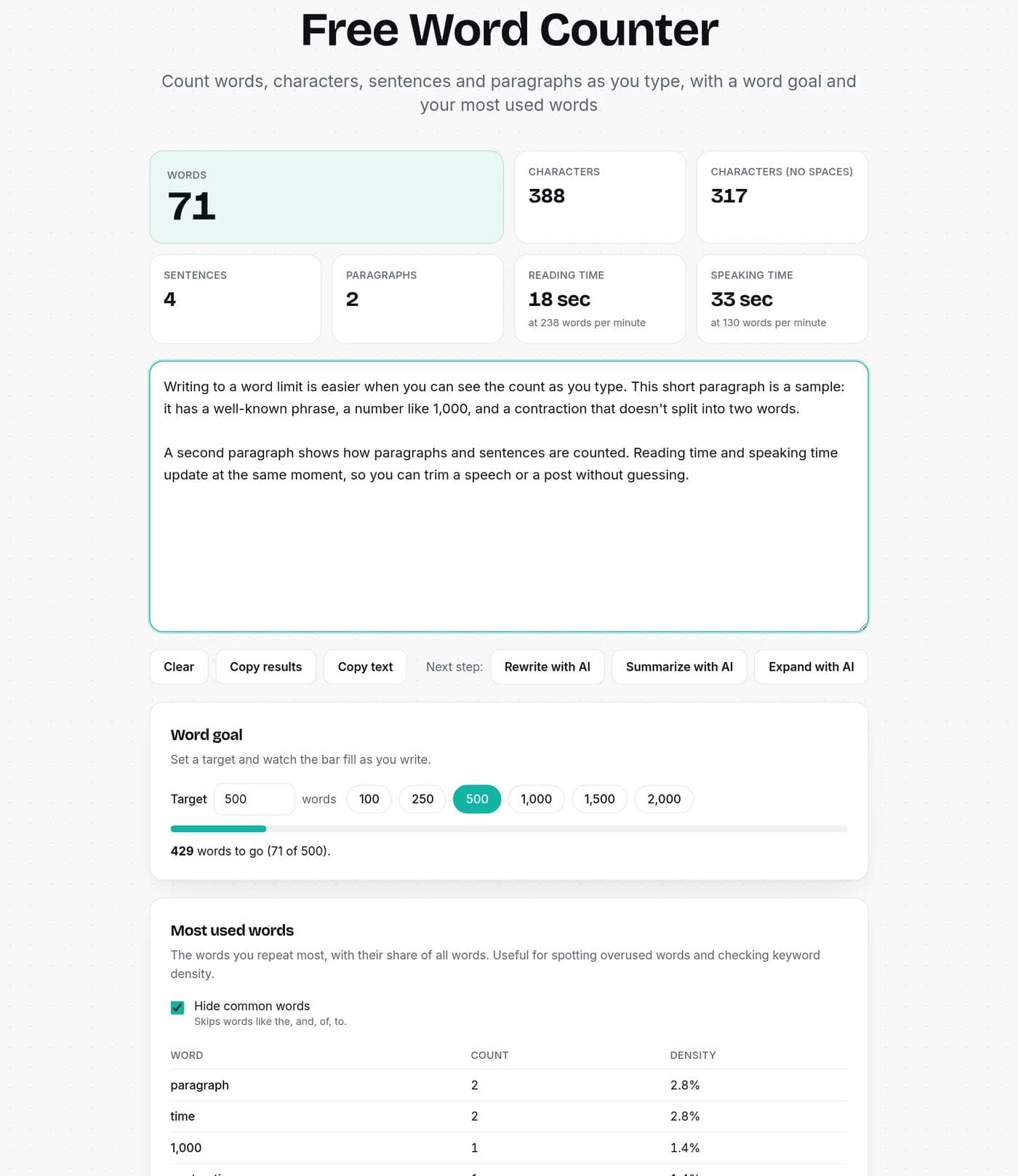
Click into the box and type or paste. The numbers above it update on every keystroke:
- Words, the main number, shown first.
- Characters, with and without spaces.
- Sentences and paragraphs.
- Reading time and speaking time, at paces you can change.
Under the box are a word goal with a progress bar and a table of your most used words with each word's share of the total. Copy results copies the numbers as plain text, and Copy text copies what you typed.
How words are counted
Every counter makes small choices about what a word is, which is why two tools can disagree. These are the rules this one follows:
- A word is a run of characters between spaces that contains at least one letter or number.
- Hyphenated words and contractions count as one word. Numbers count too, so "1,000" and "3.14" are one word each.
- A lone dash, symbol or emoji with spaces around it is not a word.
- Chinese, Japanese and Thai are written without spaces, so for those scripts the counter uses your browser's built-in word segmentation.
- A sentence ends at a full stop, question mark or exclamation mark followed by a space, with exceptions for common abbreviations such as "Dr." and for decimals. A line break before a capital letter also ends a sentence, so headings and list items count.
- A paragraph is any line that contains at least one word. Press Enter once to start a new one.
We ran the counter on some tricky inputs so you can see the rules in action:
| Text | Words | Why |
|---|---|---|
| a well-known fact | 3 | The hyphen joins "well-known" into one word. |
| don't stop | 2 | A contraction is one word. |
| It costs 1,000 or 3.14 dollars | 6 | Numbers with commas or decimals are one word each. |
| one - two | 2 | A dash with spaces around it is not a word. |
| one—two | 1 | An em dash with no spaces joins the two words into one run. |
| and/or either | 2 | A slash joins its two sides into one word. |
| visit https://writingful.com/pricing now | 3 | A web address is one word, however long. |
| Great job 🎉 team | 3 | A lone emoji is not a word. |
| 1. First 2. Second 3. Third (typed on three lines) | 6 | Typed list numbers such as "1." count as words, as they do in most counters. |
| Dr. Smith arrived. He sat. | 5 | "Dr." does not end a sentence, so this is 2 sentences, not 3. |
If a limit is strict, such as an assignment, a contest or a submission form, check the count in the program they will use as well, since that is the one that decides.
Why your count differs from Word or Google Docs
Small differences between programs are normal. The ones that matter most:
- Microsoft Word shows its count in the status bar at the lower left. Review, then Word Count opens a dialog with page, paragraph and character counts, and lets you include or leave out text boxes and footnotes in the total. If your number is higher than ours, that setting is the first thing to check.
- Google Docs opens its count from Tools, then Word count, or with Ctrl+Shift+C on Windows, Chromebook and Linux and Command+Shift+C on Mac. Select a passage first to count only that part. Headers, footers and footnotes are not included in its count.
- Pasted text can carry extra words, such as menu items from a web page or page numbers from a PDF. If a number looks wrong, check what was pasted.
- Symbols and numbering. Programs differ on lone symbols, list numbers and slashes, which is where most one or two word gaps come from.
Sources: Microsoft Support, show word count and How-To Geek on Google Docs word count.
Turn a word count into minutes
The reading and speaking time cards use a pace you can change. The defaults are 238 words per minute for silent reading and 130 for speaking. The 238 figure is the average silent reading rate for English non-fiction in Marc Brysbaert's 2019 review of 190 studies, which put fiction at 260. The same review found that reading aloud averages 183 words per minute, which is faster than the 130 used here for speaking. The table shows all three:
| Words | Read silently (238 wpm) | Read aloud (183 wpm) | Speech at 130 wpm |
|---|---|---|---|
| 250 | 1 min 3 sec | 1 min 22 sec | 1 min 55 sec |
| 500 | 2 min 6 sec | 2 min 44 sec | 3 min 51 sec |
| 750 | 3 min 9 sec | 4 min 6 sec | 5 min 46 sec |
| 1,000 | 4 min 12 sec | 5 min 28 sec | 7 min 42 sec |
| 1,500 | 6 min 18 sec | 8 min 12 sec | 11 min 32 sec |
| 2,000 | 8 min 24 sec | 10 min 56 sec | 15 min 23 sec |
| 2,500 | 10 min 30 sec | 13 min 40 sec | 19 min 14 sec |
| 3,000 | 12 min 36 sec | 16 min 24 sec | 23 min 5 sec |
| 5,000 | 21 min 1 sec | 27 min 19 sec | 38 min 28 sec |
Type your own number into the pace box above the text if you read or speak faster or slower. Times are rounded to the nearest second, and a talk with slides, pauses and questions will run longer than the arithmetic. For a full tool built around this, see the reading time calculator and the speaking time calculator.
Stay within a word limit
Check the count as you write rather than at the end, because cutting 200 words from a finished piece takes longer than writing it tight. When you are over:
- Cut repeated ideas first. The most used words table shows what you keep coming back to.
- Look at the longest sentences, then split or shorten them. The sentence counter lists them for you.
- Delete filler openings such as "it is important to note that" and see if the sentence still works.
- Shorten, do not compress. Removing every article and connecting word saves words but makes the text hard to read.
If you are short instead, expand a thin section with real detail rather than padding. The buttons under the text box send your text to the summarizer to see a shorter version, or to the paragraph expander to develop a thin section. They are optional next steps and run on your monthly credits.
Set a word goal
Many jobs come with a target: a 500 word summary, a 1,500 word article, a 250 word abstract. Enter your target in the Word goal box, or pick 100, 250, 500, 1,000, 1,500 or 2,000, and the bar fills as you write. It says plainly how many words are left, or how many you are over.
Find your most used words
The most used words panel lists the words you repeat most, with a count and the share of all your words. Common words such as "the" and "and" are hidden by default so the list shows words with meaning, and you can turn that off.
- Spot repetition. If the same word fills your top three, vary it or cut it.
- Check keyword density. If you write for search, you can see how often your main keyword appears. Treat the percentage as a sanity check, not a target. Writing for readers matters more than hitting a number.
Word count or character count?
Use words for essays, articles, abstracts and anything with a word limit. Use characters for things that have a character limit: social posts, titles, meta descriptions and text messages. The character counter checks your text against platform limits. Characters with spaces and without are both on this page.
Your text stays in your browser
The counting happens on your device, in the page you are looking at. Nothing you type is sent to Writingful or to an AI, and nothing is saved when you close the tab. The buttons that open an AI tool are the only exception: if you click one, your text is carried over to that tool so you can work on it there.
What a word counter cannot tell you
A word count says how long your text is, not how good it is. It cannot tell you whether a limit includes headings, footnotes or references, because every assignment and publisher decides that differently. It also counts what you paste, so numbers can include extra text that was not part of your writing.
If you want to know how many pages a count makes, read how many pages is 1,000 words. For book lengths, see how many words are in a novel.
Related tools and guides
Frequently asked questions
Writingful for your kind of writing
See how Writingful helps with the content you write most, by use case and by industry.

Cover Letter Writing
Draft a tailored cover letter in minutes, then add the real details that make it yours.
- Tailored cover letters
- Career change letters
- Entry-level and student letters

Business Report Writing
Turn your data, notes, and findings into clear reports, summaries, and updates, then verify every number.
- Executive summaries
- Status and progress reports
- Meeting summaries

Speech Writing
Draft a speech, toast, or set of remarks in minutes, then make it sound like you when you say it out loud.
- Wedding toasts
- Retirement and farewell speeches
- Graduation and ceremony remarks

Manufacturing
Write product pages, capability statements, case studies, and technical articles faster, with specifications you have checked.
- Product and catalog descriptions
- Capability statements
- Case studies

Real Estate Agents
Write listing descriptions, neighborhood guides, market updates, and blog posts in less time, with fair housing in mind.
- Listing descriptions
- Neighborhood and area guides
- Market updates and newsletters

Accountants
Write client emails, tax-season updates, and firm blog posts faster, while keeping client data and professional rules in view.
- Firm blog posts and tax explainers
- Service pages
- Client deadline emails